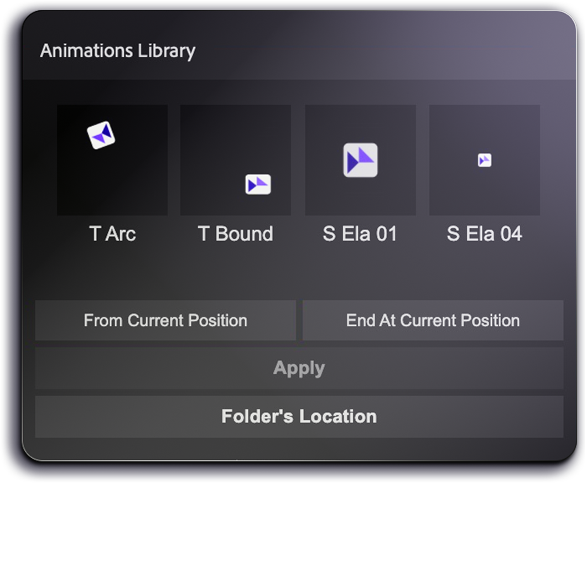
Every preset is engineered to drop into any project without touching your layers — and to give you full customisation when you need it.
⚡
Non-Destructive by Design
Every animation runs on a dedicated Null layer that links to your target layer. Your original layer stays completely clean — no keyframes added, no properties modified.
🎯
From or To Current Position
Choose whether the animation starts from the layer's current position (enter) or ends at it (exit). One toggle, two totally different motion directions — same preset.
〰️
Ease & Elastic Curves
Each directional animation comes in both Ease and Elastic flavours. Ease for smooth, professional motion. Elastic for bouncy, expressive energy. Switch freely.
🎪
Anticipate Code
Many presets include anticipation frames — the subtle pull-back before a motion that makes animation feel physical and alive, not robotic.
🎛️
Full Slide Controls
Every parameter — motion path, speed, overshoot, rotation amount, scale intensity — is exposed as a Slide Control expression. Tweak anything without touching a single keyframe.
📂
Use Your Own Presets
The panel lets you point to any folder of .ffx files on your machine. Your own custom animations sit side by side with the library, browsable in the same grid.
Workflow
Three steps from still to animated
No complex setup, no Expression Editor, no timeline gymnastics. Just select, choose, and apply.
01
Select your layer in After Effects
Click any layer in your composition — shape, text, solid, footage, pre-comp. The Animations Library works with any layer type without requiring any prior setup.
02
Browse and click a preset in the panel
Scroll through the thumbnail grid. Presets are organised by category (Position, Scale, Rotation combinations, Transit, Wiggle). Click any thumbnail to select it.
03
Choose direction and hit Apply
Select From Current Position to animate an element entering, or End At Current Position to animate it exiting. Hit Apply — a Null layer is created, the animation is applied to it, and your layer is parented to it instantly.
04
Fine-tune with Slide Controls (optional)
Expand the Null layer's Effects panel to reveal all Slide Controls. Adjust travel distance, timing, rotation amount, elasticity, and more — all in real time, all without touching keyframes.
Complete library
All 128 Presets
Filter by category or search by name. Every preset ships in the library — nothing is locked or sold separately.