Illustrator
Toolbox v1.0
10 precision scripts for artboard management, smart scaling, layout automation, and object control — all in one extension panel.
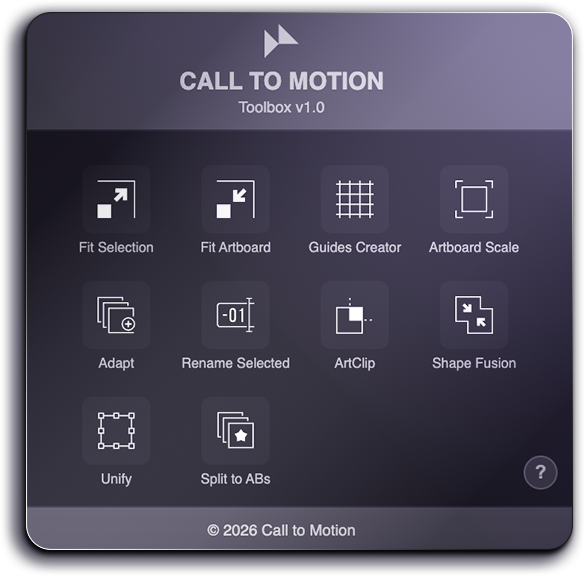
10 precision scripts for artboard management, smart scaling, layout automation, and object control — all in one extension panel.
Documentation
Every script, what it does, and when to reach for it.
| Script | What it does | Key input |
|---|---|---|
| Adapt | Exports artboard content to multiple sizes simultaneously with smart element scaling | Preset or custom sizes list |
| Artboard Scale | Resizes the active artboard and rescales all elements in place | New width & height |
| ArtClip | Creates a clipping mask based on artboard bounds with margin offsets | Selected objects + margin values |
| Fit Artboard | Shrinks or grows the artboard to wrap the current selection | Selected objects + optional margins |
| Fit Selection | Scales & centers selected objects to fill the active artboard | Selected objects + margin insets |
| Guides Creator | Draws margin + column/row grid guides on the artboard | Column & row counts, gutters, margins |
| Rename Selected | Batch-renames objects with prefix + auto number + suffix | Selected objects |
| Shape Fusion | Converts and merges shapes/text/strokes into a single flat path | Selected objects |
| Split to ABs | Sends each selected object to its own new artboard in a grid | Selected objects |
| Unify | Matches size and/or rotation across all selected objects | Selected objects |
Tool 01

Adapt takes everything on your active artboard and duplicates it into one or more new artboards at different dimensions — all in a single operation. It ships with social media presets (X, LinkedIn, Facebook, Instagram square & portrait, WhatsApp Status) and lets you add, remove, or edit any entry before running.
The smart scaling engine analyses each element's relationship to the artboard edges. A background touching all four edges gets stretched (or cover-cropped if you choose). Elements pinned to three edges, or to two opposite edges, are scaled then re-pinned so they still bleed correctly on the new canvas. All other elements scale proportionally and are clamped so they never overflow. Guides are repositioned but not resized.
New artboards are placed in a tidy 3-column grid below the original, with 250 px spacing.
| Option | Description |
|---|---|
| Artboard list (name / W / H) | Editable table of target sizes. Add or remove rows freely before applying. |
| Maintain Background Aspect Ratio | 4-edge elements use a cover algorithm instead of stretch — fills the canvas, may crop. |
| Stretch elements touching 3 edges | 3-edge elements are proportionally scaled, then their touching edges are snapped to the new boundary. |
| Stretch elements touching 2 opposite edges | Full-span elements (left-to-right or top-to-bottom) are re-pinned after proportional scaling. |
Tool 02

Artboard Scale resizes the active artboard to new dimensions you specify, then scales every element on it in place using the same intelligent edge-detection logic as Adapt. Unlike Adapt, it modifies the existing artboard rather than creating new ones — ideal when you need to adjust a single canvas.
Dimensions are shown in whatever unit your document uses (px, mm, cm, in, pt). The tool reads and writes the artboard rect, then repositions every page item whose centre falls within the artboard bounds, including guides.
| Option | Description |
|---|---|
| New Width / New Height | Target dimensions in the document's current ruler units. |
| Maintain Background Aspect Ratio | 4-edge elements use cover scaling instead of stretch. |
| Stretch elements touching 3 edges | Re-pins 3-edge elements to the new boundary after proportional scaling. |
| Stretch elements touching 2 opposite edges | Re-pins full-span elements after proportional scaling. |
Tool 03

ArtClip creates a rectangle based on the active artboard size, applies optional margin insets on each side, and uses it as a clipping mask over all currently selected objects. The result is a single grouped, clipped object sitting exactly within the artboard (or inset from it).
| Option | Description |
|---|---|
| Top / Left / Right / Bottom | Inset the clipping rectangle from each artboard edge. Positive values shrink the mask inward. |
| Link | Ties all four margin inputs together so editing one updates the others. |
Tool 04

Fit Artboard resizes the active artboard so it wraps exactly around the bounding box of the current selection. Add optional margins on each side, and choose to fit only Width, only Height, or both simultaneously. Negative margin values are accepted — useful for intentional crop or bleed areas.
| Option | Description |
|---|---|
| Fit Width / Fit Height | Choose which dimensions are adjusted. Both can be active simultaneously. |
| Maintain Aspect Ratio | Preserves the current artboard proportions while fitting to the selection. |
| Margins (Top / Left / Right / Bottom) | Extra space around the selection. Accepts negative values. Link checkbox syncs all four. |
Tool 05

The inverse of Fit Artboard — instead of moving the artboard to meet the objects, it moves and resizes the objects to fill the artboard. Every item in the selection is scaled and centred within the artboard area, with optional margin insets.
Constrain Proportions mode uses the minimum scale ratio (fit-inside) so nothing overflows the artboard boundary regardless of the object's original aspect ratio.
| Option | Description |
|---|---|
| Match Width / Match Height | Which dimension(s) are scaled to the artboard. |
| Constrain Proportions | Scales uniformly using the smaller of the two ratios — the object fits inside without distortion. |
| Margins (Top / Left / Right / Bottom) | Inset the target area from each artboard edge. Accepts negative values. |
Tool 06

Draws a complete layout grid on the active artboard. Optional margin guides first define a safe inner working area. Then column and row guides are generated within that area, with configurable gutter spacing. When gutters are set to zero, a single guide is drawn per boundary; when greater than zero, two guides per boundary show the gutter width clearly.
All guides are real Illustrator guide objects — they can be toggled with View > Guides and cleared with Edit > Guides.
| Option | Description |
|---|---|
| Enable Margin Guides | Draws four guides at the specified inset from each artboard edge. |
| Top / Left / Right / Bottom margins | Margin distance from each artboard edge. |
| Columns — Number / Gutter | Column count and spacing. Gutter = 0 draws one line; > 0 draws two. |
| Rows — Number / Gutter | Row count and spacing. Same gutter behaviour as columns. |
Tool 07

Assigns a structured name to every selected object in one action. Define a text prefix, a starting number (zero-padded based on the digits you type), and a text suffix. The script increments the counter for each item in selection order.
| Option | Description |
|---|---|
| Original Name: Remove | Replaces the name entirely with prefix + number + suffix. |
| Original Name: Keep at Start | Result: originalName + prefix + number + suffix |
| Original Name: Keep at End | Result: prefix + number + suffix + originalName |
| Prefix / Start Number / Suffix | Typing 001 pads all numbers to 3 digits automatically. |
Tool 08

Automates the multi-step process of preparing objects for a clean Pathfinder merge. It converts text frames to outlines, expands all appearance attributes, converts strokes to filled shapes, and runs a Pathfinder Unite — giving you a single combined path.
Create Silhouette mode goes further: it releases compound paths (removing inner holes) and runs Unite again, producing a single solid silhouette — perfect for shadows, icon exports, or embroidery files. All strokes are removed from the final output.
| Option | Description |
|---|---|
| Unite Shapes | Runs the full expand + Pathfinder Unite workflow. |
| Create Silhouette | Removes compound path holes and unites again for a single solid outline. Requires Unite Shapes. |
Tool 09

Creates a new artboard for each selected object, matching the source artboard dimensions exactly, and moves each object to its new canvas. New artboards are laid out in a 3-column grid below the source with 100 px spacing.
Each object is translated so it maintains the same relative position within its new artboard as it had on the original. Checking Move each item to a new layer creates a dedicated named layer per object — ideal for Asset Export or Save for Web workflows.
| Option | Description |
|---|---|
| Move each item to a new layer | Creates a uniquely named layer (Element_1, Element_2…) alongside each artboard. |
Tool 10

Standardises size, rotation, or both across a group of selected objects. Each operation is independent — run size only, rotation only, or both together.
Area-based size modes (smallest, largest, average) scale each object proportionally using a square-root area formula so all objects end up with the same visual weight regardless of aspect ratio. Custom mode supports entering only W, only H, or both — one dimension scales proportionally; two dimensions scale independently.
| Option | Description |
|---|---|
| Rotation (TextFrame only) | Sets all selected text frames to a specific angle in degrees. |
| Size — Match Smallest / Largest / Average | Area-based proportional scaling across the selection. |
| Size — Custom W / H | Explicit target. One dimension = proportional scale; both = independent scale. |